
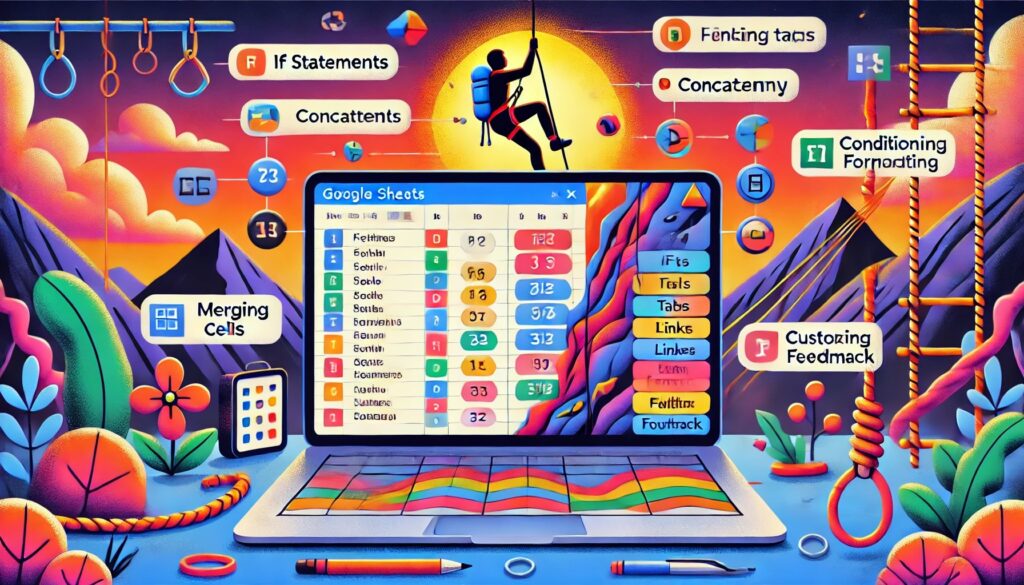
AI Generated Summary
- The tutorial explains how to create an interactive lesson using Google Sheets, focusing on building skills for both students and educators in using spreadsheets effectively.
- The instructor emphasizes the importance of teaching students how to use spreadsheets, introducing various functions like IF statements, concatenation, and conditional formatting.
- The lesson example revolves around a rock climbing activity, using Google Sheets to guide students through tasks that involve functions, game creation, and problem-solving.
- Key steps in creating interactive lessons include merging cells, using conditional formatting, linking tabs, and customizing feedback based on student inputs.
- Advanced techniques discussed include using custom formulas for conditional formatting and automating feedback to enhance the interactivity and engagement of the lesson.
AI Generated Transcript
(1) Create an Interactive Lesson using Google Sheets – YouTube
https://www.youtube.com/watch?v=27OaUIqEFaI
Transcript:
(00:03) all right so that is happening and the slides are linked in the chat and i’m going to go ahead and screen share uh i this is i mean i’m just learning of what it is okay all right so if anybody knows me they know that no one loves a spreadsheet more than me and we were doing office hours last week and we kind of got started someone had asked a question about an answer sheet and then i kind of fell down the rabbit hole where we started doing this and several people were wanting to have it as a webinar so i put that down for this
(00:45) week we’re gonna make some interactive google sheets lessons i feel very passionate that we do our students a disservice for them to not be comfortable with spreadsheets and if you don’t feel comfortable spreadsheets well then that just proves my point that we’ve done you a disservice we should definitely all be using spreadsheets so here’s a good place to start now i have an example that is guaranteed to overwhelm the heck out of you and so don’t freak out this is uh like a super example thing that i have made um maybe not even
(01:18) as a goal to work up to but just um for those of you who are watching the recording thank you for being a member if you’re not a member you can join at alaska.com memberships you can join these webinars so we are going to go to alicekeeler.com lcap i’m going to go ahead and put that into the chat or chat do you want to get out of full screen view um yes and you’ll be able to see this for yourself and this is a lesson plan that i made for google a while ago and this one’s for google expeditions you know the box that you
(02:08) put on your face so i have the lesson plan here you’ll notice that i have all eight of the mathematical principles and all four c’s and if you come down i have where it says the spreadsheet which i do have linked on the slides so the idea here is that the students would put the box on their face and they would go see this yosemite mountain climb now i live near yosemite i taught up in yosemite last year and so what they would see is something similar to this except it’s on their face and up close and personal
(02:52) why is this not working so you would they would be able to see around the mountain where they’re climbing up the side of el capitan it’s um not as easy to navigate here with the computer here but with the box it’s a guide navigation and they’re like whoa you know it’s like look down there i’m gonna fall off the side of this mountain and so then i asked the essential question how do functions keep you from falling off the side of el capitan so if you’ll notice in the google doc that i’ve shared with you
(03:37) that’s alice.com lcap it has a commentary narrative for you to say as you go through the different images and then what we want is for the students to go to this spreadsheet and i have it linked here this will prompt you to make a copy i want you to see is how i have a full lesson all put together into this spreadsheet um okay so once you have your copy in the yellow box where it says name if you’ll please put your name
(04:46) notice the first tab down at the bottom says start and then it says let’s learn about the concept of functions and using function notation look for blue cells with directions and yellow cells for places to fill in so alice in the yellow box in cell a8 please type the word math functions so that was not right so it says try again if i say math functions and it gives me the essential question how do functions keep you from falling off the side of el capitan mountain in yosemite and we’re gonna go to the next
(05:20) labeled function game so this is just a small thing for students to do that they would play with a student another student to create a list of questions that only have one answer so um what do you eat soup with and the answer is a spoon what i’m trying to think i feel like i’m on the spot trying to think of something so i’ll just put question two answer two question three answer three question four answer four question five and that’s when the students have filled out all of this part um then they’re going to make up
(06:15) questions that have multiple answers because i’m trying to set up the concept of functions that when you ask a question you only get one answer so what is a type of flower so it could be a rose chrysanthemum like i even know how to spell that daisy and then i could ask another another another and another when i filled out those then it gives you the rules for playing the game with a partner just to try to get them to do this and i’ve got some scoring mechanism going on in here and then they would go to the next tab
(06:55) for rock climbing where they would get out their google cardboard and we would go through some of these different things and they do a little brainstorming and it pops up go to the next tab where we would climb el capitan now i have a rules you don’t tell students things that they can look up it is 2020 we take a different approach to um questions that just have an answer so you would google search how tall is el capitan so how tall is el capitan the answer is 90 830 and then what are some dangers of rock climbing
(07:46) rocks fall on your head so anyway this continues this way that you’ll notice that i have many tabs along the bottom that builds on exploring i’m into the engage explore explain extend evaluate 5b’s lesson plan model that i have this entire lesson built into google sheets that also includes my assessment okay i’m not asking you to make something that intense so but we are going to just make some spreadsheets so let’s go ahead and finish my slides and then we’re going to just mix them together
(08:25) gonna be great uh one of the first things i want you to realize is that when you’re making an interactive lesson in google sheets is that you want to use the equals sign so in any cell you type the equal sign and then you click on another cell that is the most basic function to do and it just says whatever’s in that cell put it in and i really like that because it allows students to make some sort of a decision or get a piece of information and then it takes and puts that piece of information somewhere else so that we can build on
(08:57) it so that’s one of the skills that we’re going to use is using an equal sign we’re going to concatenate but you do not need to know what that word you don’t need to know that word although it’s one of my favorite spreadsheet words concatenate means to smash together or to bring together so i get some text and a cell reference so what i would put is whatever words that i want to say the ampersand symbol and then the cell like c5 or and i usually will do that by clicking on it say and that cell so just click on those
(09:34) that’s how i can build text and things that are in the spreadsheet and if statements is very handy so if and then you put your statement that you’re testing to if it’s true or false and if the statement is true do this and if the statement is false do that so we’re going to make use some if statements and a reminder that all text has to be in quotations so when i say hello i need to have it in quotes and this is one of my favorite formulas right here if a cell is blank then leave it blank otherwise i’m going to smash some stuff
(10:17) together so let’s break this formula down i start with an equal sign i type f parentheses and then i’m like okay i have a box here for a student to type into if it’s empty so just blank quotations no space comma just leave it empty don’t do anything otherwise here’s the next set of directions and so that is one of the things that i will definitely use quite a bit and then we’re ready to get started with those basics so let me give you again the link to these slides if you don’t have them
(10:57) so that you can access this layer okay and we’re going to go to sheets.new and create a new spreadsheet so if you would do that with me sheets.now i’ve named it this is my sample interactive lesson what’s really great about using this spreadsheet is i can take advantage of the fact that i can use the search using the explore bar so students can do searches right within the spreadsheet they can have as much space as they want to with their answers i have room to do feedback and i can build on previous information
(11:59) on the different tabs so we’re going to be doing is we’re making a lot of tabs and linking to the previous tab so the first thing i would like you to try is to just highlight a bunch of cells it is a little bit tricky with the trackpad if you’ll give that a try i can see everything all at once and then up in the toolbar what you are looking for is the merge icon it’s right to the left of the centering we’re just going to merge this into a big box i’m going to click merge and then i’m going to use the paint can
(13:03) and i make my directions blue and where i want my students to answer to be yellow that’s what i do that doesn’t mean that’s what you have to do and i look for the centering icon and i do centering in the middle and then go to the icon to the right and i do vertical centering so i choose the middle option on this one and then i go to the right one more icon and i turn on word wrapping word wrapping is an essential skill for using spreadsheets so i want it to word wrap i want it to be centered i’m gonna say hello please
(13:45) put your name in the yellow box below and then you can make it a different font if you want to and you can increase the font size if you want to have a little fun with that and then what we’re going to do is we’re going to make another group of cells just highlight another any chunk do something similar i’m going to merge the cells i’m going to center center in word wrap except in this case i’m going to use the paint can and color it yellow and i’m not sure why but i like student responses to be in a handwriting
(14:51) font i have something going on like this let me know if you have a question how do you center the text alice it might be cut off depending on your screen width and so you need to have these three dots to get the rest of the toolbar and i always do middle middle metal so i’m looking for that icon that i know looks like centering to the left of that is the merge to the right of that is center vertical and word wrap you’re gonna have to click on those tiny triangles to get the pop down on the sheet where it says sheet one on
(15:53) the tab i’m going to type welcome so i just double click and then i type a new tab name and what i want to have happen is when they type in their name it gives them the next set of directions so decide where you want that to happen it could be over here to the right or below it but it should be somewhere where it’s visible and i’m going to do the same thing i’m going to do merge i’m going to center center and word wrap now let’s try something a little crazy i’m going to right click on this
(16:46) cell this big cell and i’m going to go to conditional formatting and in conditional formatting the default is is not empty i want to go with that one if it’s not empty i would like the paint can color to be blue so i right clicked on the cell i went to conditional formatting and i just chose the color that it’ll be if it’s not empty i will wait a quick question shouldn’t you do the center and center and merge and all those steps repeatedly is there a way to create some kind of script or or shortcut key to where you can do a
(17:35) one-click you can record a macro and you can copy and paste i’m going to start cropping paste here pretty soon and the thing when you copy and paste or even with the macro it’s going to do it to a certain size and i don’t always have the same size so i think that you will find that the center center center or why i call it middle middle middle in general not specifically for that one but just something like that that would be repetitive yeah i’m with you i usually like and i have you know when you check in
(18:06) on the on the premium member check-in thing you know it’s not so hard for me to just click on the select all awesome box and then go to the toolbar and then set the word wrapping but it’s several steps and so on that i actually have a menu that i created for it to wrap to do a little bit quicker the the reason i don’t do that with these is again is the box sizes differ so what i do is i set it up how i want to with the font i like and the colors that i’m going to use and then just do a lot of copying and pasting
(18:43) alice i have a question um the conditional format rules it’s at the top it’s for single color not for the color scale right not doing color scale okay good that’s just to make sure thank you i i rarely use color scale color scale is good if you’re going to set up like you have a grid of student grades and you want it to color code those automatically without you individually going through and setting things but other than that i think for the most part i just use single i’m going to go ahead and get done and
(19:16) exit the conditional formatting and i am going to in this cell now you might want to go back to full screen while you watch me do this we’re going to see how you do i start with an equal sign and i want to say equals if and so what i want to do is i want to test if the student answered if the student answered so if and i’m going to take my mouse and i’m going to click on where the student answers and you’ll see it automatically puts the b8 for me and i prefer to do this because it’s very easy
(19:58) i’m old i’m 43 and i my new glasses and even if i was 20 it’s kind of tricky to make sure that what you see is what you type you’re like oh i thought that was eight it was really seven you know so just click on it it’ll insert it for you if b8 equals nothing so i just put the double quotes directly i’m going to do this again comma nothing this is my most used formula that we’re going to do in this interactive lesson if the answer box is nothing comma nothing otherwise so i put another comma
(20:43) i’m going to click on the b8 because i want to say their name so it gets it’s more personal and i do an ampersand and then i do the quotations so i’m going to take their name and i’m going to tell them what to do i’m going to put a comma and a space please go to the next tab quotation parentheses i’m going to paste this formula into the chat the b8 is probably different for you your student cell answer box is probably different than mine so you would want where i put b8 for it to say wherever you thought the student would
(21:28) answer i’m going to push enter i’m going to paste this into the chat view hold on i didn’t get the formula i got the text here is the formula no i don’t copy paste there we go all right so i’m going to do it again from scratch but if you’d like to give it a try i’ll talk you through it so you’re going to single click on this big merged box so and you’re going to type equals if parentheses and click on the student answer box and i’m going to say if equals quote comma quote quote if nothing
(22:30) comma nothing otherwise another comma and then i’m going to click where they would put their name ampersand it’s on the 7 key quotation comma spacebar please go to the next tab quotation parentheses enter if you wanted to add like hello before the name is there a way to to add text and and then the formula and then the rest of the text yeah definitely you just put the text ampersand i mean the text in quotations ampersand cell reference ampersand okay alice yes
(23:35) the the ampersand does that mean whatever is in that cell is that what that stands for um the ampersand means and okay so i want this whatever’s in this cell and this text okay um yes to point out if you are in another country besides the us your keyboard might use something different so they had to use a semicolon instead of a comma i am not familiar with foreign keyboards so i’m not going to make suggestions on those and you’ll have to figure out the modification if you are using a foreign keyboard not us keyboard now
(24:29) if you hit enter should it work yes when i push enter i should see this assumes that i’ve got the sample name in here because notice if i remove alice the whole thing disappears i liked what that man said but i didn’t hear how your directions about saying hello person i tried putting hello before the police and it did come out so i would suspect i have to put hello before the quotation c12 you can put the cursor in front of the v8 i put quotations hello quotation ampersand so you can do the ampersand in any combination it’s just
(25:23) this and this and this and this you put ampersands in between them so it could be cell reference cell reference cell reference or text and cell reference and cell reference text like any combinations doesn’t matter very cool oh yes hello now it says hello alex yeah that’s awesome yeah all right all right now if you want just for funsies you can click on the little tiny triangle on the tab and change the color because sometimes i like to say that you know not only is it the name but i like to like on the yellow tab or something like
(26:08) this the ones that are like really crucial maybe i will color usually i do not but um you know sometimes it’s nice and we’re going to click the plus icon in the bottom left to add a sheet it now says sheet two and what i’m going to do here is i’m gonna basically go through similar steps i’m going to highlight a bunch of cells i’m going to merge them i’m going to middle middle middle but instead of the paint can from now on i am going to use the conditional formatting because i don’t want to
(26:56) show up unless they’ve answered the previous question so i’m going to say conditional formatting if it’s not empty make it light blue so once you go ahead and make another sheet merge some cells together middle middle middle right click conditional formatting and then i’ll tell you the formula we’re going to use the good news is this starts getting really repetitive we’re going to do the exact same thing five million times i pretty much have shown you everything now we just pull it together
(27:43) when you’re creating something like this that you have a lot of the similar things we use the paintbrush to kind of drag those out or just do it by hand each time depending on the size you need i think you like to use format painter uh sometimes yes i’m going to clear out the conditional formatting and in this case note you might want to go to full screen and watch me do this and then i’ll do it again i’m going to single click on the cell i’m going to say equals but what i’m ch and if same thing but what i’m checking is if
(28:22) they answered the previous box but the previous box is on the other sheet so i’m going to click on the welcome tab and i’m going to click on where they have their name so i have my cursor here it says equals if parentheses and there’s my cursor and i click on welcome and i click on where their name is and you’ll see now instead of saying b8 it says welcome exclamation mark b8 because it’s referencing the the sheet and the cell on the sheet so if that is nothing comma nothing otherwise and i’m going to click back on here
(29:05) because i like to keep putting their name in it ampersand quotation let’s keep learning what is your favorite number put in the yellow box below so i’m setting up pretty much the same formula and i’m again i’m going to do this again pretty much the same formula except instead of just saying b8 i have to have the tab name and the cell reference for where they put their answer and when i push what i do wrong um welcome if oh oh i don’t want to calm i want equals yeah let’s try that here is my formula
(30:12) okay so i’m going to clear that out and you can do it with me i’m going to single click on the cell i’m going to type equals i’m going to click on the welcome tab and i’m going to click on where the box is that i wanted students to answer oh i’m sorry i got ahead of myself equals if don’t so you will just pop that in front i apologize equals if and then we’re checking if they answered if welcome b8 equals nothing comma nothing double quote double quote comma i’m going to click again on where they
(31:13) put their name ampersand and so i want to say their name and i’m going to put some text comma space let’s keep the learning going put your favorite number in the yellow box below and quotations and parentheses how are we doing can you do that one more time yes i will start it over so equals if so this is going to just become muscle memory because we’re going to type equals if abundances of times so if they answered so i could go well where were they supposed to answer so i click over on the previous tab i
(32:05) click on where they were supposed to answer and i say if that box equals nothing if it’s blank quote quote comma do nothing quote quote if it’s not blank if they did answer then i want to click on where their name is and use the ampersand on the 7 key now i’m going to put text so text has to be in quotes and so i’m just going to comma space let’s continue learning what is your favorite number put it in the yellow box below and i push enter and it should show up in there and you can make the font bigger and
(33:08) format it and all these nice things it’s like a size 14. i’m going to change it to okay so then we’re going to make the answer box so i’m going to highlight some cells since i’m only asking for a number i’m gonna highlight fewer cells i’m gonna merge them i’m gonna do middle middle middle i am going to change the font size all right excuse me that’s not what i wanted the handwriting font and because i just want them to put in a single number i’m going to make it really big
(33:56) maybe 50. let’s test this out yeah that looks good now i have a way to make this turn yellow with the conditional formatting but the problem is they don’t have anything in there right now it is empty so let’s just mint for now we’re going to manually just paint it yellow and it’s just going to be yellow all of the time at the end for those of you whose head is not swimming and you want a really really really advanced tip i’m going to show you how to do the conditional formatting when i’m trying to test if a different
(34:50) cell than the one i’m using is empty but we’ll do that later okay i’m going to be a pain can i see the formula for the blue box one more time because i finally got my excel the copy i also put it in the chat oh you did okay then never mind no problem right yeah my question is um when you refer to the merge boxes you just uh choose b8 for instance but it refers to the entire merge yes is the upper left okay and the other ones don’t exist anymore okay um i got lost in the first conditional format you did for the
(35:43) uh third uh box that you created in the welcome no the original yeah so i right click i choose conditional formatting defaults but it’s like this thickly green i don’t like it so then i change it to blue because i like blue okay i thought that was it okay thank you welcome of course can i ask a question how do you i i clearly committed an error because it says error all nice and big how do you get back in it to like fix whatever the error was anyways double-click or you’ll notice above the abcd you can actually pull the formula bar
(36:37) down okay thank you so if your formula is getting out of control what i will do is i’ll pull the formula bar down and give myself more room to edit up in the formula bar thank you you’re welcome so once they answer i want to make some more merged cells so we’re going to merge some cells and i am going to whoops merge it and of course center center center middle middle middle i’m going to right click in conditional formatting and if it’s not empty i just want it to be blue and i’m going to do the same formula i
(37:37) can copy and paste it but i don’t want to because i want to keep practicing equals if the answer box so now my answer box is d8 the answer box is d8 if it’s blank comma blank otherwise okay now here’s where i like to get fancy i want the student’s name in there so i’m going to click back on the welcome tab i’m going to click on their name so now it says welcome exclamation mark b8 and then of course i’m going to use the ampersand so i can put their name and my directions quotations comma please go to the
(38:28) next tab wow now in this one i’m going to put num for number um you can leave them as sheet1 sheet two sheet three but i usually will give it a one word preferably one word um just hint at what it is all right let’s delete all the yellow boxes and we’re going to test this out all my yellow boxes are now empty it says hello please put your name in the yellow box below there’s nothing there and then i click over on the num tab and everything’s blank except the answer box is yellow if you want to get really fancy go to
(39:26) view grid lines and get rid of the grid lines view grid lines now it looks extra magical all right let’s test it again in the yellow box i’m going to put my name says hello house please go to the next tab i go to the next tab what’s my favorite number says alice please go to the next tab can you go to the formula for this one alice can you pull that one up this the this one right here yeah thank you we’re just gonna do the exact same thing again so i’m gonna add a sheet i’m going to merge some cells together
(40:30) merge center vertical wrap middle middle middle i’m going to right click conditional formatting if it’s not empty it will be blue and i say equals if now i’m checking for the last answer box so i’m going to go to the num tab and i’m going to click on in my case d8 is where my answer box is now i’m i’m going to come up here to the formula bar and edit it up here just because it’s a little bit easier so if the previous answer box is empty don’t get the next set of directions otherwise now do i want to put their
(41:26) name in it i usually do so i click back on the welcome tab and i click where it has welcome exclamation mark v8 honestly i pretty quickly memorize this and i just type it whenever i want to have their name ampersand comma patient comma choose a smaller number than all right watch what i’m doing i’m on my third sheet i go to the second sheet to see if they answered if they did not answer we’re gonna do nothing if they did answer i’m gonna go back to the first sheet and grab their name and put some text
(42:18) and i’m going to go grab the value off of the second sheet so i’m going to click on the second sheet and i’m going to click on the answer box i lost it gave me an error it’s okay and the second why is it doing this to me i’m gonna choose smaller number than num exclamation mark d8 i don’t know what i shouldn’t have had any problems sometimes i do so let’s you gotta interpret the formula if the second sheet in d8 is blank comma leave it blank otherwise go back to the first sheet get
(43:05) their name and choose a smaller number and i’m going to go grab that smaller number so do you see how i’m taking their answers and pulling it into the next sheet so this is one of the ways that i reduce cheating i’m not going to say eliminate because that’s not going to happen but i ask them questions that requires that they input a value and then they build on their previous answer so i might say write me a sentence and then on the next sheet i pull in that sentence i say okay i want you to rewrite this sentence but
(43:44) with a proper noun then on the next sheet i pull in the sh the sentence with a proper noun say okay now write me one fix this so it has a semicolon i don’t even know what i’m talking about but you see what i’m saying is that i have them customize their previous answer so if i was teaching social science i might say choose a country in the world then on the next tab i say for your country and then it pulls in what they chose so i try to get them to make some sort of a decision so that their work looks differently
(44:18) than the work of the student next to them now being a math teacher it’s really easy for me because i just let them pick the number pick any number you want but even for english if you let them pick the names and some of the different elements you can bring those over so that it’s customized so what they do is different than their numbers i’m going to paste this formula into the chat as well goodbye and i’m gonna make my font bigger you know but you’ll see it says alice choose a number smaller than 20.
(45:00) so if i go back through and i changed my name from alice to nancy what happened here and i changed my number from 20 to 79 it now says nancy choose a smaller number than 79 so it’s customized you can see the formula up here in the formula bar so one of the things that i have a problem with is you know how you’re able to keep your formula on from one sheet to the next wow when you picked it to put it on there i i’m sorry it frequently breaks on me this is why elsa
(46:03) my tip is to own is to name the sheets with a single word because the phone is complicated so watch what happens here and then i make another sheet and i put equals and then i click on alice keeler and then i click on you know whatever cell look at this cell reference zooming in okay that was too much oh wait too much zoom hey do you see my cell reference says equals single quote alice space keeler single quote so if your tab has a space in it then your cell your cell reference where it mentions on this sheet go to this cell
(46:58) i have to do this single quotes it just makes it more complicated since i like my life to be less complicated i try to just like use an abbreviation a single word you know keep it simple because as you pointed out elsa as you do the clicking i don’t know maybe my finger slips on the trackpad or something i i just lose where i click and it won’t do it right so sometimes i’m like forget it and i just type it in myself i’m like it’s on the num tab exclamation mark i know it’s c8 or whatever you know
(47:38) alice do we only put the formulas in the one the tab next to the question and the answer well i mean you can write formulas anywhere you want i i know but what i’m saying is what for now what we’ve been doing is just right just in that answer the one next to it right the tab on the right yes i take the one from the left and then i put it into the next one usually but you know as you get more practice you’ll start being you can you can obviously grab from any cell on any sheet so here’s a fun trick is
(48:17) that you can have some information on uh a sheet that’s hidden you make a sheet you hide the sheet and then down here in the lesson it’s gonna reference things that are on this hidden sheet can you click on the nancy blue box so i can see the the formula again please and i i pasted it into the chat okay thanks absolutely but it won’t it won’t check it if it’s correct it’ll just make sure there’s something in there right well if you want to check if it’s correct we’ll do that next ish next dish cause i
(49:05) still okay i need to make obviously an answer box like they’re gonna stick it in here so i need to merge middle middle middle um i need a paint can and make it yellow um i need to change the font and make it bigger honestly goodness what i do is i go over to the previous answer box i copy that box and i paste it once you get good at this you can copy and paste the question boxes and the answer boxes so the formatting the word wrapping is all in there i just want you to practice it getting comfortable with the middle
(49:45) middle middle but once you are you can just copy paste so i’m going to choose a number smaller than 79 so let’s test that so i’m going to merge i’m in the middle middle middle and i’m going to right click and i’m going to conditional format and if it’s not empty then i’m going to make it light blue okay cool you know but in this case i want to check if the number is smaller okay take a deep breath we’re going to think through this right equals if okay there’s a good chance i’ll mess
(50:41) this up because you’re watching me if this number d8 if that is blank comma black i’m still gonna do this if they didn’t answer don’t do it are you ready for this one hey take a deep breath comma if i’m gonna check something i’m first gonna check do they have an answer no no we’re done i’m not doing anything oh they did answer they did answer okay so now i want to know if d8 is less than i’m going to click on the number tab and i’m going to click on the d8 on the previous one
(51:24) i’m going to zoom in here if it’s less than comma great ampersand their name is ampersand next tab if it’s not less than eight it didn’t they don’t have the right answer comma try again okay i’m going to grab this formula it’s called a nested if watch what happens when i pick a bigger number but if i put cat it has to be a smaller number and then it gives the next set of directions okay so i’m going to zoom in i click on the cell but i’m going to let you look at it
(52:26) in the formula bar i have two ifs we’re getting crazy here i’m getting crazy now if this was not a math answer but it was a numerical answer i could say if d a equals cat or whatever the answer is supposed to be and that’s where i go and i make hidden sheets because i refer to the answer sheet on a hidden sheet so they can’t just look at the formula and know what the answer is that’s when i start getting they can still outsmart me this is not intended to be
(53:28) assessment and with if formulas it’s supposed to build them step by step through the lesson that they don’t see like all the information at once but it’s a slow reveal oh look at you gabby using is a number very nice obviously as your spreadsheet skills increase that you know different formulas and testing methods you are welcome to use all of that nice job okay so basically i just continue to do that let’s do the next sheet i’m by name that tab small i was using alice spacekeeler as a non-example like don’t do that
(54:32) make it short make it a single word it’s my tip you can do whatever you want but i might okay now i am feeling lazy so i am going to copy this from the small tab ctrl c and on the new tab control v because i already have an answer box i mean i have the directions box i have the answer box i have the test box let’s just copy paste the whole thing once i like yeah i get this i merge them a middle middle middle i set the font i do the conditional formatting i got it alice if you don’t then keep doing that but if
(55:29) you’re like i’m bored i know this go ahead copy paste so then what i’m going to do in the directions box is i’m going to double click and i’m going to edit or i’m just going to delete the whole thing and start over which is probably easier i’m just going to delete it and start over equals if and i go back to the previous tab and if the previous answer box is blank comma blank otherwise and i click back on where their name is ampersand give me a red fruit now let’s pretend there’s only one
(56:33) answer to this i’m going to double click on the box that checks it and instead of it checking does ca less than the previous c8 i just want to know does it equal apple let me zoom in there okay so in this case i’m just testing if they have the right answer alice if it’s not spelled correctly it’s not going to work right that’s right it will happen exactly but the capitalization won’t matter hi jennifer
(57:39) what if you wanted to be like a student writes a sentence with a verb extender how would you know if they did that you’re going to look at it it’s the same it’s the same problem like if you use quizzes or google forms um i can’t have it grade i mean i do have a little more capabilities because i can formulate a test if it contains a word right and i it was what i mean a little more capabilities i mean tiny more capabilities but basically if i can’t auto grade it on quizzes if i can’t auto grade it on google forms
(58:17) i can’t autograde it in my spreadsheet either because you still set it up in a spreadsheet for them to do a sentence with the verb explainer is they right click on the answer box and they get linked to this range and they turn in the answer box they turn in that link so when i click on it i don’t open the whole spreadsheet i just open up the box i have to check but would you could you set it up in the formula where you know if they wrote something yeah yes i mean yes you know i just i check if it’s nothing
(58:53) i can check if it has a word contained in it depending on your spreadsheet skills sure okay now here is where i promised you i would get crazy i’m gonna make a new sheet and if you are feeling overwhelmed already don’t pay attention let it go it’s fine oh wait the first thing is before you give it to students make sure you go to all the yellow boxes and delete them right um so i am just going to just really quick hack this okay so let’s say that i i do have the directions box now what i’ve been telling you to do
(59:56) is to just use the paint can for the yellow box and be okay right if you want it to only turn yellow if the directions are there i’m going to right click i’m going to do conditional formatting i’m warning you this is really advanced it’s not intermediate not advanced it’s really advanced so if this is too much don’t worry about it just just make the box yellow it’s not that big of a deal instead of is not empty i come down to the bottom and i do a custom formula this is not an intermediate skill this
(1:00:41) is not an advanced skill this is a very advanced skill so if this is too much don’t worry about it i’m going to do custom formula and this is weird because you end up needing two equal signs one of the hardest things about formulas is i started with an equal sign let me say equals and i can’t click when i do the custom formatting it won’t let me click so i have to be like okay this is d7 so d7 okay taking a deep breath i want to check if it’s if it’s empty or not empty so i have to use less
(1:01:24) than greater than this means not equal to okay i know when you put the less than greater than next to each other it means not equal to nothing so it oh i’m sorry and it’s c7 do you see what i’m talking about why i like to click if c7 nope it’s c2 i can’t even keep track here i see i see my problem i am checking if c2 the directions box is c2 is the directions box empty if it’s not empty make it yellow i’m going to copy this into the so if there’s no directions it’s not yellow if there is directions it’s yellow do
(1:02:27) you see that i don’t know pretty cool it is very cool but not really there so don’t worry about it you know i’ve got lots of crazy things going on here you can just copy and paste that into a keep now and you’re like i just use i just copy and paste the formula i don’t even know all right i can’t wait to see your interactive lessons that you guys make what i like about doing these is many things i i can make it so they use the same spreadsheet all week they don’t necessarily uh finish all of it at once and then i can
(1:03:16) go in and i can add a feedback box if i want merge themselves give me a spot for feedback you mentioned earlier how you would hide to our hide a sheet so they couldn’t see it is there a way to like lock that to where they can’t view it because otherwise couldn’t they click on the horizontal you can you can hide it and then i what i’ll do is i’ll just pick random locations and i change the font to white i do these it’s a lot of very it’s easy to get around like any kid who really wants
(1:03:49) to will so you know don’t put too many layers of masks on it um but you know a little bit does work if they are editors you cannot lock a sheet from an editor or the owner if they’re the owner if they’re an editor i can lock them from the sheet so like i can make a sheet these are my answers and you know the answer is cat and i’m gonna cell reference that and um i lock it i go protect the sheet they cannot edit it and then i hide the sheet so um if they are the owner you cannot lock the owner out it will not be protected they’ll be able
(1:04:43) to edit it just so you know so it’s probably just a waste of your time so the only way to do that is you make the spreadsheet and you share it with them with edit access and now you can lock stuff down but otherwise i mean it’s just like a it’s just a tiny protection it’s not a big one and again i don’t use this as a quizzing tool because i if i have it where it checks the answers they can find them i if they do find them whatever it’s supposed to be to guide them through an idea or a concept
(1:05:30) so any questions all right you have to make one like for realsies not like my lcap that one’s too much that one took me a lot of days in fact you know i made it and google had asked me to make this i’m like okay cool and now you know we can write a blog post and teachers can make one of these and i just laughed i’m like no teacher has time to make one of these like this took me days a lot of spreadsheet knowledge to do this like mine was extra fancy you don’t need a fancy one you can just have directions
(1:06:06) and an answer box directions and an answer box you know start small we already got a little crazy here with nested if it’s pretty funny if you wanted a picture to pop up once they answer a question versus an answer would that just would you just insert a picture into a cell or how would you do that so i’m going to go ahead and grab my bitmoji which is what i usually do the image address so i put here where i want the picture to show up equals if this equals cat you know equals nothing first it’s nothing
(1:06:42) otherwise if this equals cat comma image quotation and the and you put the link otherwise good job okay so you know when i type cat but wait what happened here damn it oh i didn’t end the image i made a mistake and then the image url has to be in quotes so now you can just use that however you want and be careful with the bitmojis if bitmoji urls are blocked then that won’t work and you got to use some other pictures could you do that like if you put the image in like google drive or something
(1:07:45) would that be the same idea just kidding um actually what you would do is you would put it into a google drawing and you do file publish to the web and do publish and this publish link is an image url thank you so yeah that’s how i get around that some time ago i learned about using the spreadsheet to push new slides to a slide program you ever do any crazy thing like use this to push a slide somewhere i don’t use this to push slides but i have i’ve coded many things that push from a spreadsheet to slides
(1:08:29) i have a lot of those actually so if you go to my website lc.com at the top it says templates and then the add-ons i have many things that will do that and then for under the premium membership on the [Music] premium add-ons i’ve got some in there also i there i’ve made that so many times i’ve got many versions so gabby you can definitely do different formulas and i totally do okay i hope that was mine drop would you mind dropping that last uh bitmoji formula into the chat please remember from google drawing it’s file
(1:09:35) published to the web you need that file published to the web link okay i’m going to go ahead and stop the recording and