
Alice and Marcia discussed how to use Hyperlink Slides Choice Board Add-on. Begin by installing this Add-on here:
Student choice is one of the most engaging strategies that teachers can use. Any type of choice gives students the feeling of being in some control of their learning. Since Halloween is approaching, we created a choice board with a variety of games that students can play digitally.
You will begin by making a new set of slides, type: slides.new then delete the first slide. Create a new "BLANK" layout slide as this will be your 'table of contents" listing all of the choices for students. You can use buttons, images, or any type of multimedia since you are using Google Slides.
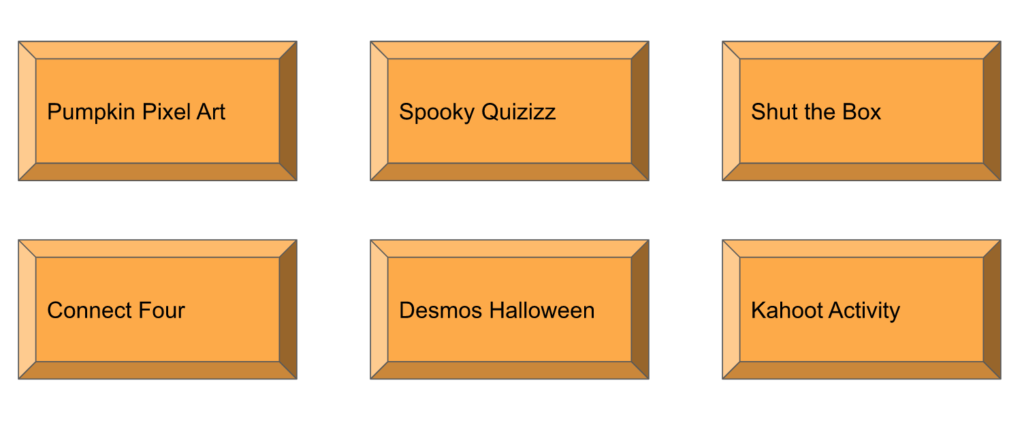
Here is the first slide we made with buttons and a list of six games students can play.
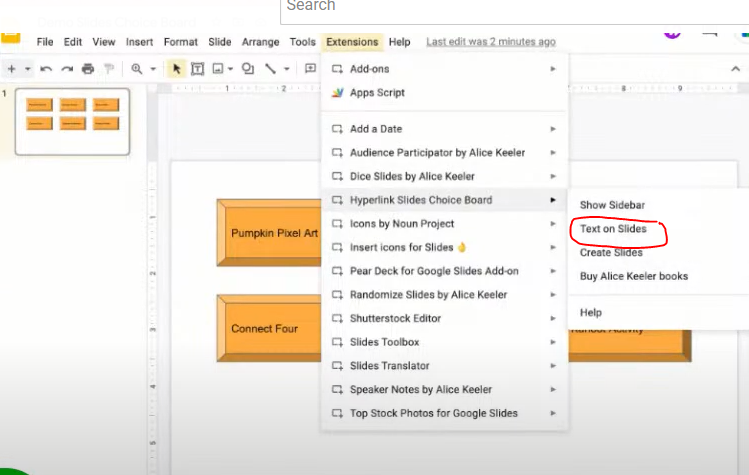
From the menu bar, select Add-ons/Extensions >Hyperlink Slides Choice Board>Text On Slides. Immediately one slide per choice will be created. These slides are created so there is one slide for the directions, for each choice. Some direction ideas are to use Screencastify and students can watch a video of directions or use Mote to record the directions and require students to listen to the directions.
There will also be an "up arrow" button placed at the bottom right corner of each slide, which will take the student back to the table of contents or back "home".
Once your slides are ready to send out to students, consider sharing the Publish to the Web link, as this add-on works best in the presentation view.
Here are the links to some of the games we discussed to get you started with creating your own choice board.