
A rubric is not a percentage! On a 4 point scale we can not let our grades be A+, C, F, and really low F. That is not what a rubric score means! But it means you have to enter the rubric score and points DIFFERENTLY into the gradebook. The problem is we use numbers for rubric scores as if they are supposed to be "mathed." They are NOT TO BE MATHED!
Use Stars
Instead of 4, 3, 2, 1... use ⭐⭐⭐⭐, ⭐⭐⭐, ⭐⭐, ⭐
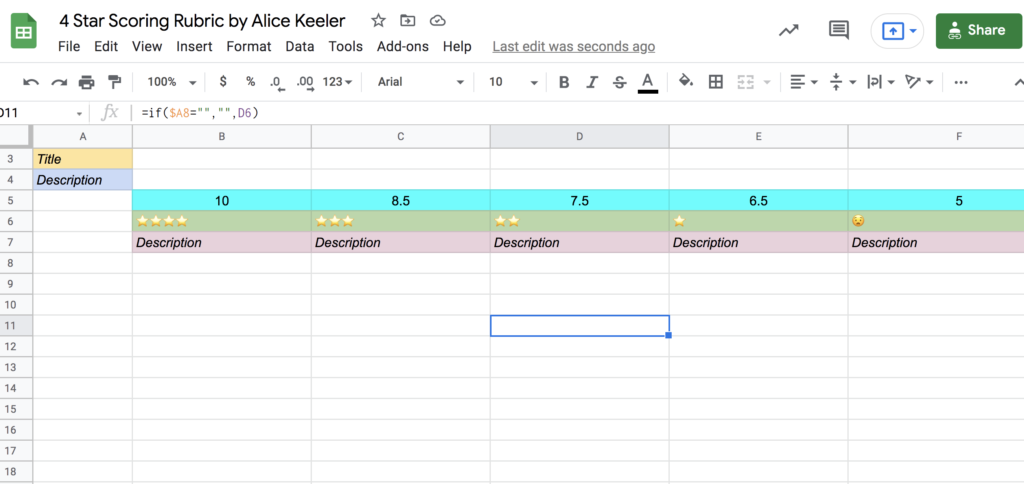
Resist the temptation to math the stars!! A 4 is an A... so 10 points. A 3 is a B to 8.5 (move away from the lowest B possible which is really a C). A 2 is a C (and not practically a D) so 7.5. A ⭐ is 6.5 out of 10. And you move to no less than 50% so a 5 for 0.
Rubric
Google Classroom lets the points on the rubric NOT match the assignment points.
Add to Google Classroom
The good news is it is super easy to add this rubric to Google Classroom. You simply need to put the criteria on the spreadsheet and the descriptions. Done. It auto saves. Just close it. (it will feel weird, but for reals, just close it.) Then you make a Google Classroom assignment. On the assignment where it says points... put in any points you want. Go for 37 🙂 ... or whatever. Rubric scores are not points!!! Now click on the rubric button on the assignment and choose Google Sheets. Find the rubric you made in Google Sheets. Boom done. You have added that spreadsheet rubric to the assignment and you can reuse it over and over and over.
To make this even easier I made a short URL for the template. Each time you need a rubric that is four STARS go to alicekeeler.com/4starscoringrubric
-
Google Classroom Feedback Loops
Feedback loops are very effective for student learning!! But they can be difficult to implement. One of my favorite ways to help EVERY student take a step is to use the Private Comments in Google Classroom. https://youtu.be/jjDPRz83WSE In this member only webinar I share how I ask students to respond to a prompt IN THE…
-
Setting Up Google Classroom
Get started setting up your Google Classroom!
-
Google Classroom: Tutorial Reuse GC Add-on (Part 1)
If you are a Google Classroom user I have created an unofficial Add-on to help you better manage your class. Make a Copy of the Add-on To use the Add-on you need to make a copy of my spreadsheet. The code is "stapled" to the spreadsheet. You can only access it from the copy of…