Profiles & Weekly Tip
 New-bee
Create a New Class in Google Classroom for the New Semester
- Import Students -Before archiving the previous unit, open any assignment in the Google Classroom class and find the cog in the upper right. Clicking on this gives you the option to “Copy all grades to Google Sheets.” This allows you to have a roster of your students email addresses that you can copy. Copy the entire list, not one student at a time.
- Archive Previous Class-If you have been organizing the Classwork page by Unit 1, 2,3,etc this will allow you to continue to do that and have the most recent assignments showing.

- People Tab in the New Class-In the new class click on the People tab. Click the icon to invite students to the class. You can paste the entire class list and press enter. Click on the results and each individual email address will automatically be separated allowing you to invite all the students at once.
- Class Code-In the new class, click on the Settings Cog and use the tiny triangle next to the class code to copy the code. In the previous class make an announcement to the students that the next unit is in a new class and paste the code. They should have noticed when going to classroom.google.com that they were invited to the class, but it can be helpful to provide the join code to help them join.
- Double Post
My best tip is to number all of your Google Classroom posts with a hashtag and a 3 digit number. #001 #002. Do not restart your numbering in the new class. Either continuing the numbering scheme or use perhaps #200 for unit 2 and #300 for unit 3.
Is it Time To Update Your Bitmoji? Bitmoji.com Bitmoji is a cartoon version of you. Warning, some of the Bitmoji’s are very inappropriate. I caution you to consider using it for yourself but to be thoughtful about if you want to assign students to create Bitmoji. I know it sounds crazy to claim that Bitmoji improves learning, but remember that Bitmoji is YOU and your relationship with students is one of the most essential elements to learning! Put yourself into your digital presence with students to make learning better! Alice's Bitmoji Blog/Video
Minecraft Education Edition Consider downloading and allowing students to play Minecraft on their devices or at least your own children or grandchildren. Alice has a great playlist of videos to get you started. I have played with both of my grandsons, ages 5 and 9. They both told me it was their "favorite time with Gigi" and they want to play with me again. I don't know much about Minecraft but that is definite motivation to keep playing and keep learning. How might your students react?
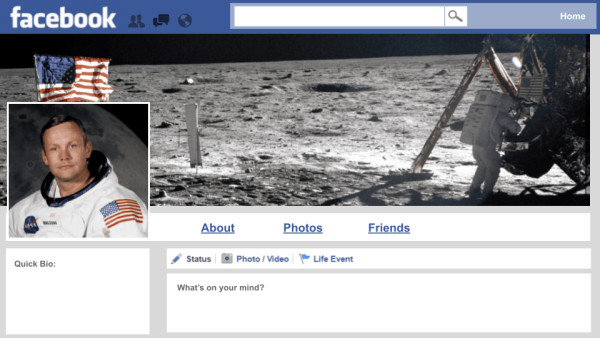
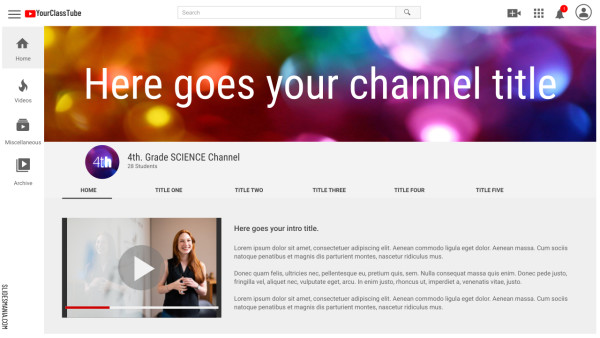
Use Social Media Templates--Several great educators have created a variety of Social Media Templates that can be used in replacement of the "real" social media accounts. I think @jmattmiller might have been one of the first one to make and post Matt Miller Social Media Templates. I found another blog by Steve Wick sharing a collection of templates. These templates are a great way for students to introduce themselves, a character in a story, a business plan and so much more. More Social Media Templates
Pencils Down - Google Classroom
3 Google Classroom Tips To Help You Work Smarter (Not Harder)
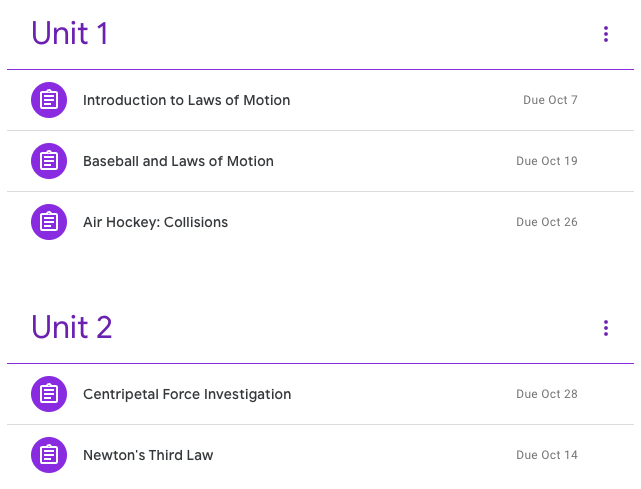
- Plan and apply topics to keep things organized-Choosing your topic structure
When choosing your topics, think about how you plan to go through your course. Some teachers organize work by Week 1, Week 2, Week 3. This is helpful if your class expectation is for students to complete assignments each week. However, the downside to this type of organization is that students may not remember which week a particular topic was covered.
2. Post all assignments even PAPER-Post all student work as assignments or quiz assignments. Students can easily find make-up work by topic or due date when it’s an assignment. For students, assignments appear in the To-Do section of Google Classroom. The benefit of posting all assignments to Google Classroom is that students have a comprehensive digital record of their work. In some cases, you may still give students the option to complete an assignment on paper. When students complete work on paper, set the expectation that students must also click Turn In on Google Classroom and include a picture of their work for full credit.
3. Set checkpoints with students to turn in work-Give students time to attach their work to a Google Classroom assignment and turn it in to receive feedback on their progress. For longer projects, setting aside time to turn in work gives students the opportunity to receive and apply feedback before the final deadline.
 Math Star
Which One Doesn't Belong? WODB
This is an excellent resource that will require your students to think and justify, thus increasing the DOK question. There is no wrong answer, it is all based on their justification. Depending on the level of students, you can require a specific number of reasons or justifications for why one of these doesn't belong. Maybe students must explain, why the other 3 do belong. Having students use FLIP to record their answer and response is a great activity.

Activity Stream
- Webinar: All Quizzes in One Google Sheets
- Add-on Make Me a Test
- Re-Defining Your Why
- Webinar: Intro to Coding Google Apps Script
- Add-on SHARE with Each Group to Edit
- Using An “Explore Board” for UDL
- Google Slides Add-on Clear Rectangle
- Communicating With Students-Text, Email, or Phone Call?
- Hyperlink Slides Choice Board Add-On
- Pull the Paragraph: Member Updates
- A Jam for Everyone Add-on
Thank you for being a premium member
Go to alicekeelermembership.com
PASSCODE IS Holidays
Exclusive Premium Resources
This is not all of the resources! Many Alice Keeler Add-ons have member exclusive features.
- Audience Participator
- Form Printer
- Scheduler
- Quiz Helper
- Speaker Notes
- Missing From Google Forms
- CalAdd
- SheetPusher
- Form to Slides and 2 Question Form to Slides
- Reuse GC for Google Classroom
- Copy My Folder Pro