
Hello , I updated the Go Slow for the Holidays #5
Profiles & Weekly Tip
 New-bee
Google added new search shortcuts for the Chrome address bar.
Google added new search shortcuts for the Chrome address bar. These new shortcuts let you quickly search your tabs, bookmarks, and history. To do this you simply type "@tabs" or "@bookmarks" or "@history" followed by your search term to search within your tabs, bookmarks, or Chrome browser history. (Thanks to my teacher librarian for sharing this tip).

3 Keyboard Shortcuts To Improve Your Workflow
This is a workflow I use frequently. Control L to highlight the URL. Control C to copy the URL and Control V to paste the URL somewhere. If you are a Mac user it is Command L, Command C, and Command V. Add Control K to create a Hyperlink. Create A Hyperlink Blog/Video

1-Highlight the URL-Control L
2-Copy the URL-Control C
3-Paste the URL some place-Control V
"FLOOD DAY"-School was canceled for students and staff. Never in my life has this occurred. I live in Central CA and work in Merced, CA, which is in a state of emergency due to flooding. It rained a lot, but what causes flooding? Talk about about relevant and engaging lessons. Why is our town flooded and why are people evacuating? How can we help? How can floods be prevented? How can we prepare for floods, in CA? Start with having students EXPLORE! Here's an App shared by UC MercedPerimeter Platform to check on road closures or flooding in your area. Accuweather is another tool we can direct students to and lastly, CA/NV River Forecast Center
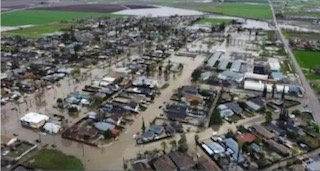
January 10,2023, Planada, CA- Complete evacuation of the community of 5,000 people.
Are you looking for a 'person' picture to use in a Blog or Social Media Post?
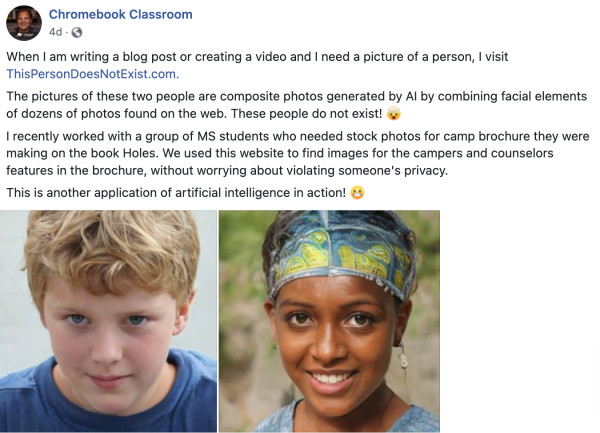
Consider following the The Chromebook Classroomon Facebook with John Sowash. Great posts and resources.
Pencils Down - Google Classroom
Quick Poll-Use the SAME Google Form to Poll Your Students
During a live session with students there are several options for how you poll students. A quick and dirty is to reuse the same Google Form repeatedly.
Steps
- Create a Google Form with one multiple choice question.
- It can be generic “Answer the question” and “A, B, C, D.”
- OR you can edit the question and answers quickly on the fly.
- To make it quick, no spot for student name or email if you want to avoid them having to login.
- Share the link to the form with the students. They will use this same form link repeatedly.
- Screenshare the Google Form.
- Toggle to the Responses tab to see the summary of results.
- Use the 3 dots on the Responses tab to “Delete form responses.”
- Toggle back to the question tab if you are going to edit the question.
Use Your Voice
When you are in a live session and want to do a quick poll you may just say… “A is yes B is no.” Use the Google Form to respond.
Screenshare the Response Tab
It is fun to see the results coming in. So you are just telling students what the generic A, B, C, D is in your Form. They respond. Remember to use the 3 dots “Delete all responses” each time to clear the responses before you ask another question. “Okay I have cleared the responses now tell me what option you prefer A, B, C, or D. Go.”

Use Google Slides
If you are using some Slides to display information pre create some multiple choice questions in your slides. Students respond on the generic Google Form each time your slide is a multiple choice question.
Toggle your screenshare to the results. Optionally, you can click on “Copy chart” icon in the upper right of the chart question in Google Forms to paste onto a slide in your Google Slides.

Edit the Question
I find I can pretty fast just retype a new question. Use the SAME question, just edit it. So I show the Questions tab in Google Forms on the screenshare. I delete the old question and quickly type a new question. Edit the answer choices as well. Since I type fast it takes me seconds, so your typing speed may influence your decision to use this option.
 Math Star
Desmos Polygraph
Desmos has several ways to engage students. Polygraph is an activity where students are paired up and ask yes or no questions to determine the pattern. The polygraph activity was hands down one of my highest engagement activities all last year.
Ice Cream Polygraph In this ice cream polygraph students will try to determine which ice cream selection the partner student chose.
Create Your Own Polygraph
Go to http://teacher.desmos.com and on the left hand side it will say “Custom Activities.”

In the upper right is the option for “New Polygraph.”
Turn Off Axes
In the bottom right is the option to “Show axes and grid lines.” Uncheck this so it is not a scary graphing calculator. You do not need a graphing calculator for non math activities 🙂

Add Image
On the left hand side click the plus icon to choose “image.”

Create images (I use Google Drawings) and upload them.
Next Card
You need to create 16 cards. No more, no less. Click on each of the 16 blank squares on the right hand side to add the image.
Activity Stream
- Webinar: All Quizzes in One Google Sheets
- Add-on Make Me a Test
- Re-Defining Your Why
- Webinar: Intro to Coding Google Apps Script
- Add-on SHARE with Each Group to Edit
- Using An “Explore Board” for UDL
- Google Slides Add-on Clear Rectangle
- Communicating With Students-Text, Email, or Phone Call?
- Hyperlink Slides Choice Board Add-On
- Pull the Paragraph: Member Updates
- A Jam for Everyone Add-on
Thank you for being a premium member
Go to alicekeelermembership.com
PASSCODE IS Holidays
Exclusive Premium Resources
This is not all of the resources! Many Alice Keeler Add-ons have member exclusive features.
- Audience Participator
- Form Printer
- Scheduler
- Quiz Helper
- Speaker Notes
- Missing From Google Forms
- CalAdd
- SheetPusher
- Form to Slides and 2 Question Form to Slides
- Reuse GC for Google Classroom
- Copy My Folder Pro